AI assistants (MCP)
Connect Claude, Claude Code, Cursor, VS Code, Codex or Windsurf to your documents over MCP — and the boundary agents can never cross: deciding is a human act.
AI assistants join your documents through MCP (Model Context Protocol) — the standard way tools like Claude, Cursor, and VS Code connect to outside services. A connected assistant can list and read your documents, search them, answer questions left in comments, reply to comment threads, propose suggestions, and update data files — always as itself, with its own name on everything it does.
Connecting an assistant
Open ⚙ Settings → Connect an AI assistant…. You get the same list of assistants either way you’re using DraftMesh, but what the panel can do for you differs:
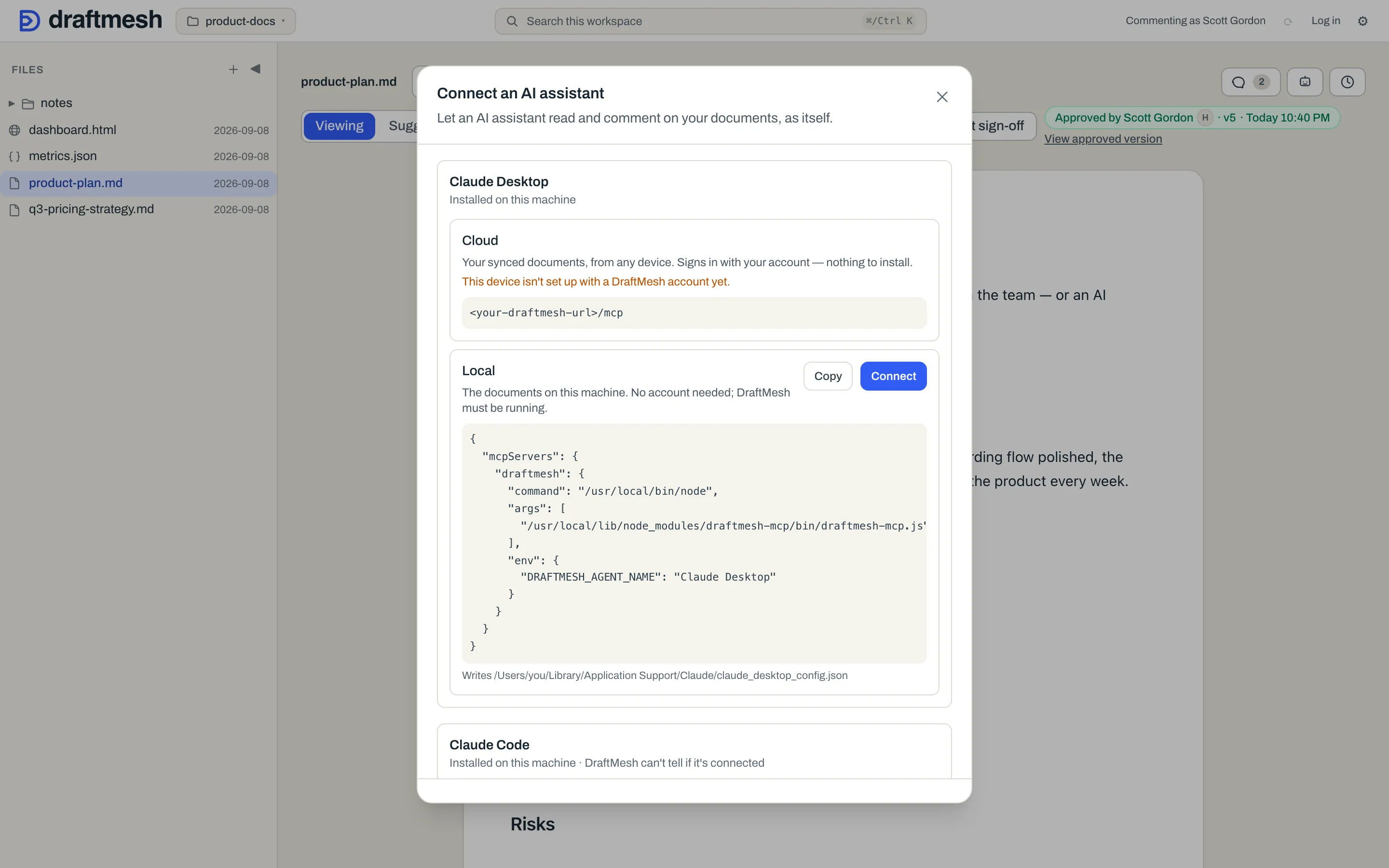
- In your browser, on DraftMesh cloud — the panel shows the Cloud setup line for each assistant: Claude, Claude Code, Cursor, VS Code, Codex and Windsurf. Copy the one for yours into its MCP settings and sign in when it asks. DraftMesh can’t see your computer from there, so it says nothing about what you have installed and writes nothing for you.
- Running DraftMesh on your own machine — the panel additionally detects which assistants are installed and offers each one both ways to connect.
The two connections:
- Cloud — connects the assistant to your synced documents, from any device. It signs in with your account, nothing is installed, and its actions are recorded as acting on your behalf. Requires being signed in.
- Local — connects the assistant to the documents on this machine. No account needed; DraftMesh must be running. Click Connect to have DraftMesh write the configuration for you, or Copy the shown snippet and add it to the assistant’s own settings yourself. The snippet is displayed in full — what you see is exactly what gets written.
After connecting, restart the assistant so it picks up the new connection.
From a terminal, with no DraftMesh window
A DraftMesh installed headlessly — npm i -g draftmesh, or the one an assistant’s connector starts on its own — needs no settings to reach the cloud: the package carries its cloud environment. Signing it in is one command, draftmesh login, which prints a short code and a link to approve it in a browser (any browser, so it works over SSH); draftmesh whoami shows who it is signed in as, and draftmesh logout ends the sign-in on that machine. An assistant connected locally can also start the same sign-in itself with its connect_cloud tool: it hands you the code to approve and never sees a credential — the sign-in lives in DraftMesh on that machine, and every client of it acts as you. To keep a headless DraftMesh entirely off the cloud, start it with DRAFTMESH_LOCAL_ONLY=1.
On your own machine each assistant’s card says Installed on this machine or Not detected, and whether DraftMesh can see a connection for it — for some assistants it honestly can’t, and says so rather than guessing. A card DraftMesh set up itself offers Reconnect and Disconnect; Disconnect removes only the entry DraftMesh wrote.
What agents can — and can’t — do
Agents get a deliberately bounded set of verbs:
- Can: read documents and history, search, add comments and replies, answer questions, resolve or reopen markers, propose suggestions, ask a named person to sign off on a document, save documents they’ve been granted edit on — typically the data files an agent is asked to keep fresh — and — where the connection offers it — create a new, empty workspace.
- Can, only where a document’s owner deliberately granted it: accept or reject suggestions on that one document. This is off by default everywhere, it rides only on an edit grant, and only the document’s owner — not any editor or admin — can switch it on.
- Can’t, ever: approve or sign off a document, restore old versions, or manage sharing. Approving is a human act, whatever an agent has been granted. This boundary is enforced by DraftMesh itself, not by the assistant’s good manners.
Asking for sign-off sits on the proposing side of that line: an assistant can record the ask and put it in your queue, but only you can answer it.
On shared cloud workspaces, a registered agent’s default capability is suggest — it can read, comment, and propose, but its text only enters a document when a human accepts it. Granting an agent full edit rights — or the accept/reject permission that can ride on it — is an explicit, per-document decision by that document’s owner, with its own confirmation step.
Asking an agent to look at a document
Everything above is the assistant coming to DraftMesh. The reverse — you asking an agent to go and work on the document in front of you — has its own Agents panel, opened with the robot button on the document toolbar, next to the ones for Comments and version history. It is a panel rather than a corner of the Comments panel so that which agents are connected, and what they have done, is one click away instead of a scroll past every comment. Where there is nothing to report it says exactly what it knows — “No active agent has access to this document”, or for a workspace owner “This organization has no active agents” — rather than leaving you wondering, and while it is still fetching it says that too. It lists active agents only, and unless you own the workspace only the ones that already hold access on the document, so an empty panel is a statement about those and nothing wider. Asking an agent to come and work is a cloud feature: on a DraftMesh running only on your own machine the panel answers “Agents aren’t available on this host.” and the button then steps aside.
Request review from an agent opens a short form:
- Agent — which one. If it can’t be reached yet, the form says so — “This agent has no delivery endpoint, so it can’t receive requests yet.” — rather than accepting a request that goes nowhere.
- Scope — Whole document, or A section and then which heading.
- Instructions — “What should the agent look at?” This is the whole brief; there is no other channel.
- Send request, and the request appears in the list below as it progresses.
If the agent doesn’t have access to the document yet, sending grants it Suggest — enough to read, comment and propose, and never more. Giving an agent Edit stays a deliberate act with its own confirmation, and it is made in Connect an agent…, which is where an agent’s access is set. Where you aren’t allowed to grant, the form says so instead of failing at send time.
Each request shows what became of it: Pending, Delivered, Completed, Failed, or Expired. A completed review offers Show the comment this answers, so the result is one click from the thread it belongs to. Cancel request withdraws one that hasn’t finished — anything still pending or delivered — and a request replaced by a newer one is marked “Superseded by a newer request.” rather than left looking stuck.
Connect an agent…, below it, is the other question — not “do this now” but “do this whenever”: a standing rule that wakes an agent every time the document changes. That is administration rather than day-to-day work, and it is admin-only; see Admin: Governing AI agents. Rules connected to this document are listed here as Connected agents. A rule pinned to this exact document puts each firing in the list below, as a Processing request alongside the ones you sent by hand. A rule with a wider reach won’t: DraftMesh says so under the list — the firing lands on whichever document changed, “which, for a rule covering more than this file, is often not this one”.
Attribution and audit
Everything an agent does is labeled as agent work — in comment threads, in document attribution, and in version history. You can always tell whether a change came from a person or an assistant, and which one.
Putting agents to work
- Assign a comment to a connected agent to hand it a task.
- Leave a question in a comment and let the agent answer it in-thread.
- Have an agent keep a data file fresh — metrics, statuses, inventories — while humans work in the prose (see Data-driven pages).
- Or skip the connection entirely: ✦ Form reply exports a document’s comments as a paste-ready handoff for any chat assistant.