Workspaces & sync
Register a folder as a workspace, turn per-workspace sync on, and resolve a sync conflict without losing either version of the document.
Opening and registering workspaces
Click the workspace name (or Open workspace) in the header to open the workspace picker.
What the picker offers depends on which DraftMesh you are using, and the difference is worth learning once. DraftMesh on your own machine works with folders on that machine, so it registers them, syncs them, and downloads account workspaces onto them. DraftMesh cloud — the signed-in web app — has no machine to point at, so it creates workspaces in your account instead. Registering a folder simply isn’t a thing there, and it isn’t hidden or greyed out: the section is absent.
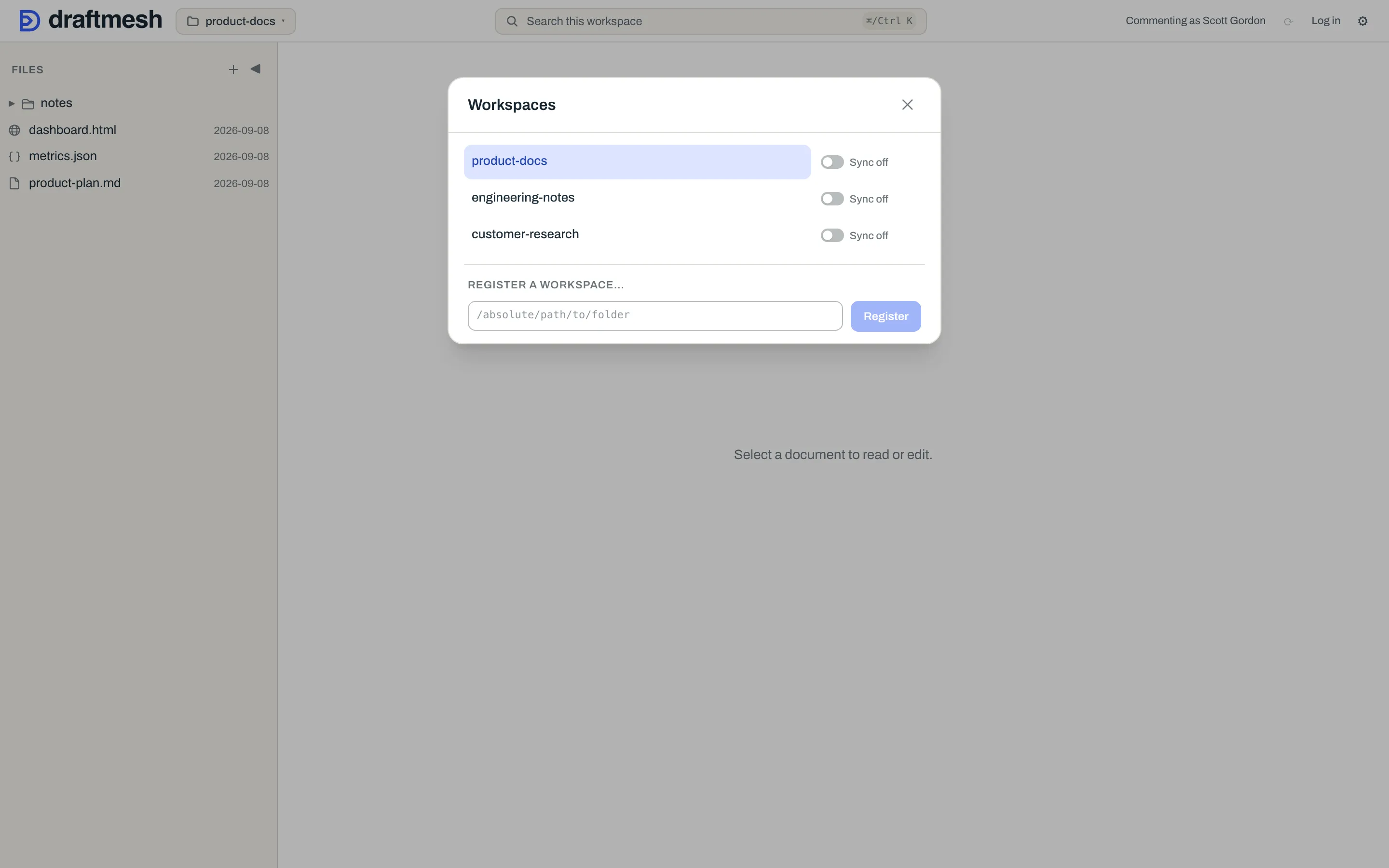
- Open a workspace by clicking its name.
- Register a workspace… points DraftMesh at a folder you already have — machine-side only. In the desktop app it is a button, Add a folder, which opens your system’s folder picker. Reaching the same DraftMesh through a browser instead, where the page is not allowed to see real folder paths, it is a field: type the folder’s absolute path and click Register. Either way the folder’s markdown, HTML, and JSON files appear immediately — nothing is moved or converted.
- Unregister removes a workspace from DraftMesh’s list — on your own machine only. The folder and its files are untouched: unregistering never deletes anything, and the dialog says so before you confirm. On DraftMesh cloud there is no unregister control, because there is nothing yet for it to do: removing a workspace from a hosted account isn’t available, and a line under the workspace list says so rather than the picker offering a control that would remove nothing.
A workspace someone shared a document with you from is listed too, marked Shared. You can read its documents; changing one still needs that document to have been shared with you.
Starting a workspace in the cloud
On DraftMesh cloud, New workspace at the bottom of the picker creates one in your account:
- Workspace name is all that’s required.
- Choose folder… optionally seeds it: your browser hands DraftMesh the documents in the folder you pick — up to 100 of them, skipping anything hidden — any file or folder whose name begins with a dot — and anything that isn’t a document. Each file that fails to upload is named rather than silently dropped, and the workspace is created either way.
- Sync to this folder on my computer is an optional hint. Your browser can’t tell DraftMesh where the folder you picked actually lives, so if you also run DraftMesh on that machine and want it to adopt that exact folder rather than downloading a copy, type the path here.
Create makes it, and it opens.
Getting a workspace onto another device
Open DraftMesh on the machine you want it on, and the picker’s In your account section lists the workspaces in your account that this machine doesn’t have, marked Not on this device. Download to this device asks which folder to put one in — give it an empty one — and Download materializes it there as real files.
Turning sync on
Each workspace on your machine has its own Sync on / Sync off toggle in the picker. Sync is opt-in per workspace: a workspace you never sync stays entirely on this device. (On DraftMesh cloud there is nothing to toggle — those workspaces live in your account already.)
To sync you need to be signed in — click Log in in the header, or, on a machine with no DraftMesh window, run draftmesh login in a terminal (see AI assistants (MCP)). Once signed in and a workspace’s sync is on:
- Changes save locally first, then sync to your account in the background. Working offline is always safe; DraftMesh catches up when you’re back.
- The header shows a Synced pill when everything is up to date, and a Sync now button to trigger a sync immediately.
- Workspaces synced to your account can be downloaded onto your other devices, as described above. Where DraftMesh puts one down for you rather than asking, it uses your Workspaces folder (set under ⚙ Settings).
If a sync can’t complete, the header says so honestly — for example “Sign in to sync”, “Can’t reach DraftMesh right now”, or “Already up to date”. Your local files are never blocked by a failed sync.
When two people change the same document
If a document changed both on your machine and in the cloud, DraftMesh merges the changes automatically when they don’t overlap. When they genuinely collide, nothing is lost and nothing is silently overwritten: the document is flagged as a conflict, and a guided panel shows both versions so you decide what the document should say. Until you resolve it, both versions are kept.
Picking a document from the conflict list opens it for review. That view takes over the document area for as long as you are deciding — the document behind it is the very file you’re resolving, so it has nothing to add — and ← Back to conflicts returns you to the list. The ✕ in the panel’s top corner closes the panel outright, from any state.
Inside the panel:
- Each conflicting passage is shown side by side: your version on the left, their version on the right, lined up against what the passage said before either of you touched it. The words that actually differ are highlighted, so two long paragraphs that differ by one clause no longer look identical. Where one version dropped the passage entirely, that column says Deleted in this version. Show common ancestor reveals the earlier text in full if you want to read it straight.
- Each column header says how many lines that version has and, when DraftMesh knows, when it last changed — saved for your copy, synced for the time theirs reached DraftMesh. Whichever is later is marked Newer. When a time isn’t known, none is shown rather than guessed.
- Each conflicting passage offers Use Your version, Use Their version, Keep both — Your version first, Keep both — Their version first, or Write custom text. (Keeping both is two choices, because the order the two passages end up in is yours to pick.) Next unresolved jumps to the next passage still needing a choice.
- Use your version for all / Use their version for all set one answer across every passage in the document; individual passages can still be changed afterwards.
- Resolve conflict then restates, in plain language, exactly what your picks will do — “Your version will be used for 3 conflicts and their version for 2” — before Confirm resolve applies them.
- The choices stay pinned at the bottom of the panel while the passages scroll, so a long conflict never puts the buttons out of reach.
When several documents are in conflict at once, the list view offers Use your version everywhere / Use their version everywhere. It works through the documents one at a time, shows progress with a Stop button, and finishes with an honest tally — how many resolved, how many failed, and which were skipped because that choice wasn’t available for them. Documents already resolved stay resolved if you stop.
Resolving updates the file on disk, and both versions stay in history either way.
Sharing (on DraftMesh cloud)
Working in DraftMesh cloud — the signed-in web app, rather than the DraftMesh running on your own machine — the document toolbar carries a Share button. The Share panel is about people: an AI agent’s access is not set here at all, but in Connect an agent… on the Agents panel (see AI assistants (MCP)).
- People — enter a Teammate email and a Capability: View, Comment, Suggest, or Edit. Sharing again with the same person changes their level rather than adding a second entry. Where the host can send email, the panel says “an invitation email is on its way”; where it can’t, it says so — Copy link and send them the link yourself. The panel only ever promises what actually happened.
- Whole workspace — the same, for every document in this workspace at once. A per-document grant and a whole-workspace grant can coexist; a person’s level on a document is the higher of the two.
- Guest links — for someone with no DraftMesh account at all. Choose a Scope (Whole document or A section), a Capability, and an Expires — 1 hour, 24 hours, 7 days, or 30 days. Create guest link mints it. A guest link can never carry Edit, and never lasts forever.
- Selecting text in the document offers two more routes: Copy link, a deep link that opens the document at that section for anyone who already has access, and Share section…, which issues a guest link exposing only that section.
People with access, People with whole-workspace access, and Guest links below list what exists, each row with Revoke behind a confirmation. Revoking bites immediately. Agents never appear in these lists — an agent’s access shows on the Agents panel and in Admin: Access review.
Two things worth knowing before you try:
- In an organization, sharing is admin-only. The Share button is on everyone’s toolbar, but in an organization DraftMesh answers a non-admin’s Share panel with a refusal rather than a share roster — reading who has access is as restricted as granting it. And sharing needs an organization at all — on a personal account there is no organization behind it, so the Share panel’s actions are refused. Holding Edit on a document never lets you pass it on.
- A grant reaches further than the document. The person you share with gains the workspace in their list, badged Shared, and can read its other documents — but only read. Writing anywhere still needs a grant on that exact document.
Admins get an organization-wide view of all of this; see Admin: Access & sharing.