Getting started
A tour of the DraftMesh window: the files pane, the four document modes, the comments panel, version history, workspaces, and how attribution works.
DraftMesh is a home for the documents you and your team — including AI assistants — write together. Every document is a plain file on your disk. DraftMesh never locks your writing into a database: you can open, edit, move, or back up the files with any tool you like, and DraftMesh will pick up the changes.
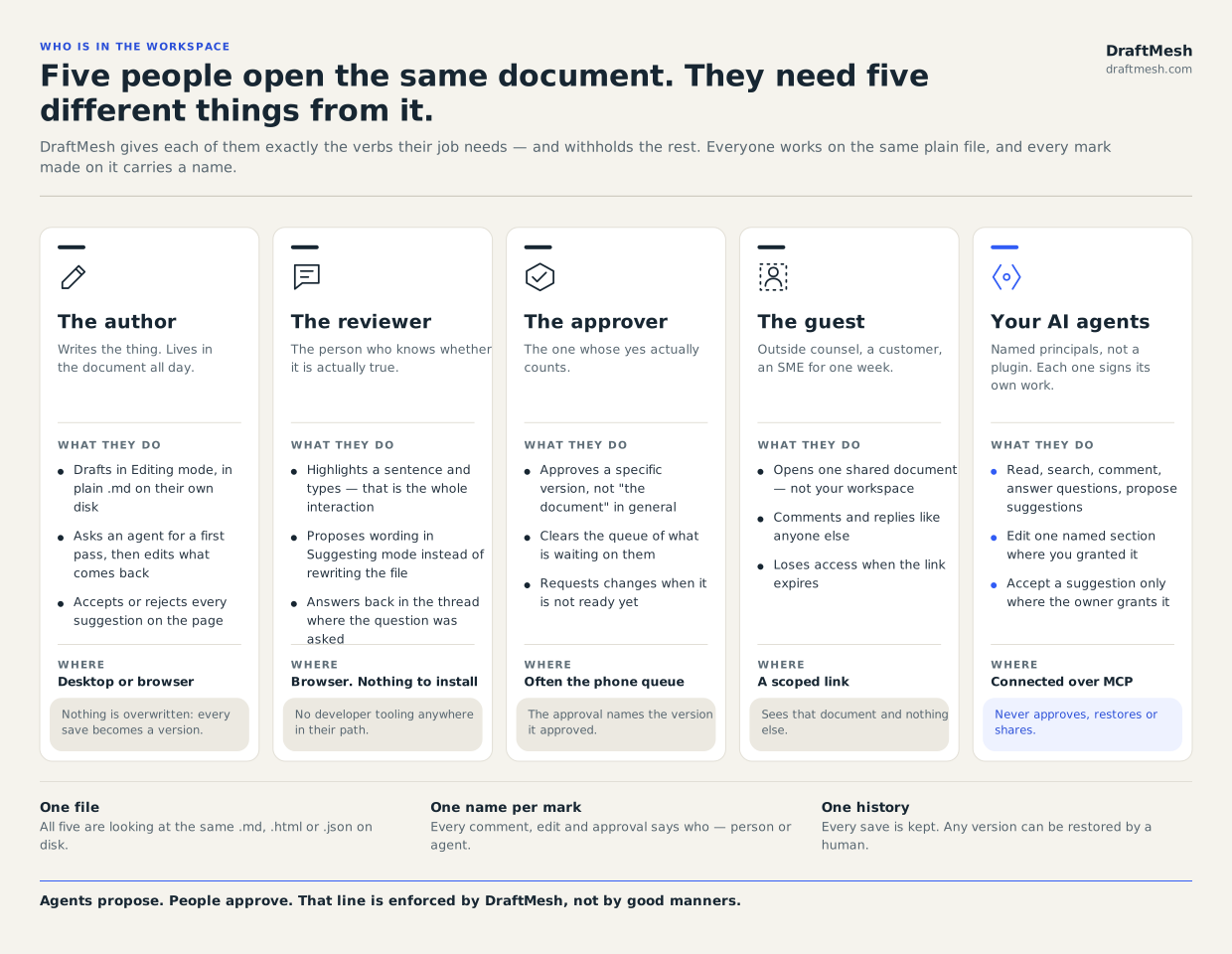
Who else is in here
A document is rarely yours alone. The people who open it want different things from it — and so do the AI assistants you connect. DraftMesh gives each of them exactly the verbs their job needs.
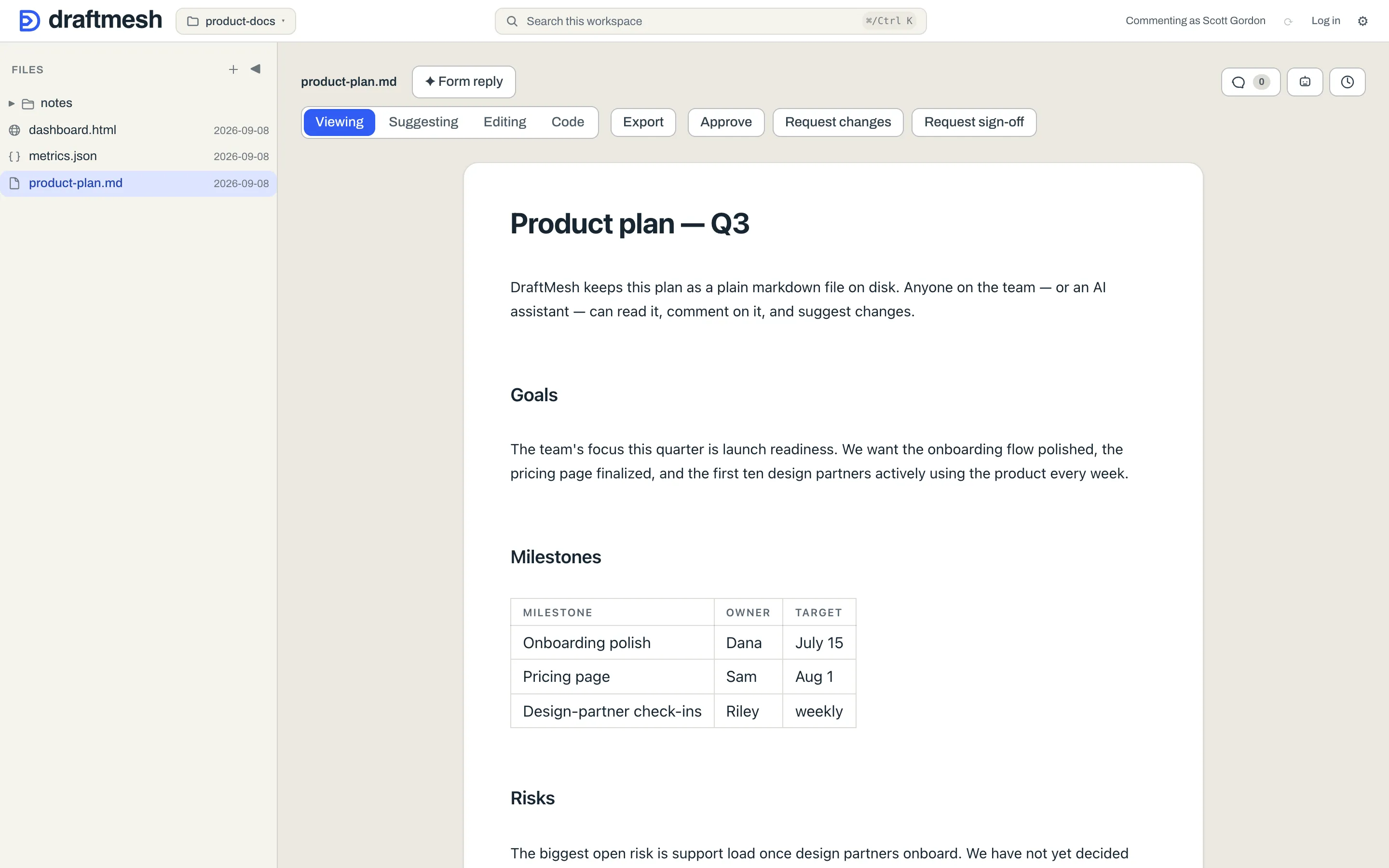
The window at a glance
- Header — the workspace switcher (folder icon), workspace search (
⌘ K/Ctrl K), your name, sync controls, and the ⚙ Settings menu. - Files pane (left) — every document in the open workspace, as folders and files. Click a file to open it. Hovering a folder offers Copy link to folder, a link that opens DraftMesh with that folder expanded. Drag the divider to resize, or collapse the pane with the ◀ button.
- Document (center) — the document itself, with a toolbar for switching between Viewing, Suggesting, Editing, and Code.
- Comments (right) — comments and suggestions on the open document. Toggle between a List and an In-place view.
- Agents — the robot button opens what AI assistants are connected to this document and what they have done with it, and is where you ask one to go and work on it. Asking an agent to work is a cloud feature, so on a DraftMesh running only on your own machine the button steps aside. See AI assistants (MCP).
- Version history — the clock button opens the document’s saved versions; every save is kept and any version can be restored.
Workspaces
A workspace is just a folder on your machine. Open the workspace switcher in the header to pick one, add a folder you already have, create one in your account, or turn sync on and off per workspace.
Making a new document
New at the top of the Files pane starts one: give it a name, pick the folder it goes in, and pick its type — Markdown, HTML, or JSON. The document is created and opens straight away, ready to type into. Typing a folder that doesn’t exist yet makes it as well.
A document is still just a file, so nothing has to go through that button: create a .md in the workspace folder with whatever you already use — your editor, Finder, a script, a template — and it appears in the Files pane the same way. Renaming, moving, and deleting work like that too, and DraftMesh follows along.
Two other things can put a document in front of you: a connected AI assistant can create one (see AI assistants (MCP)), and creating a workspace in the cloud can seed it from a folder you upload (see Workspaces & sync).
On a phone
Open DraftMesh on a phone and you get a different layout: a queue of what’s waiting on you — sign-offs, replies, suggestions — instead of the full editor. See On your phone.
Your name
Comments and edits are attributed to you. Running DraftMesh on your own machine without an account, set your display name under ⚙ Settings → Your name — that attribution is self-asserted, and the panel says so: it reads whatever you typed. Signed in, ⚙ Settings shows Your account instead, and your work is attributed to your verified account identity rather than to a name you can edit.
The ⚙ Settings menu
Beyond your name, it holds:
- Workspaces folder — where workspaces downloaded from your account are put. Running DraftMesh on your own machine only.
- Connect an AI assistant… — see AI assistants (MCP).
- Administration… — the organization console, shown only to admins. See Admin: Your organization.
- Create an organization… — signed in without one, this asks DraftMesh for an organization of your own so you can bring colleagues in. A person on the DraftMesh team reviews the request, and the dialog says so plainly; you can close it and come back — the request keeps its place.
- Help & user guide… — this guide.
- Close — dismisses the menu.
Signing in and out is not in this menu; those live in the header.
Nothing leaves this device unless you say so
DraftMesh works fully offline with no account: reading, editing, commenting, history, and restore all work locally. Syncing to the cloud is a per-workspace opt-in — see Workspaces & sync.