Reading, editing & suggesting
DraftMesh's four document modes — Viewing, Editing, Suggesting and Code — and where comments, suggestions and approvals are stored inside the markdown file.
Every markdown document has four modes, switched from the toolbar above the document:

Viewing
The default. The document renders as formatted prose. Select any text — a phrase, a whole section, even across a table — and a small menu appears:
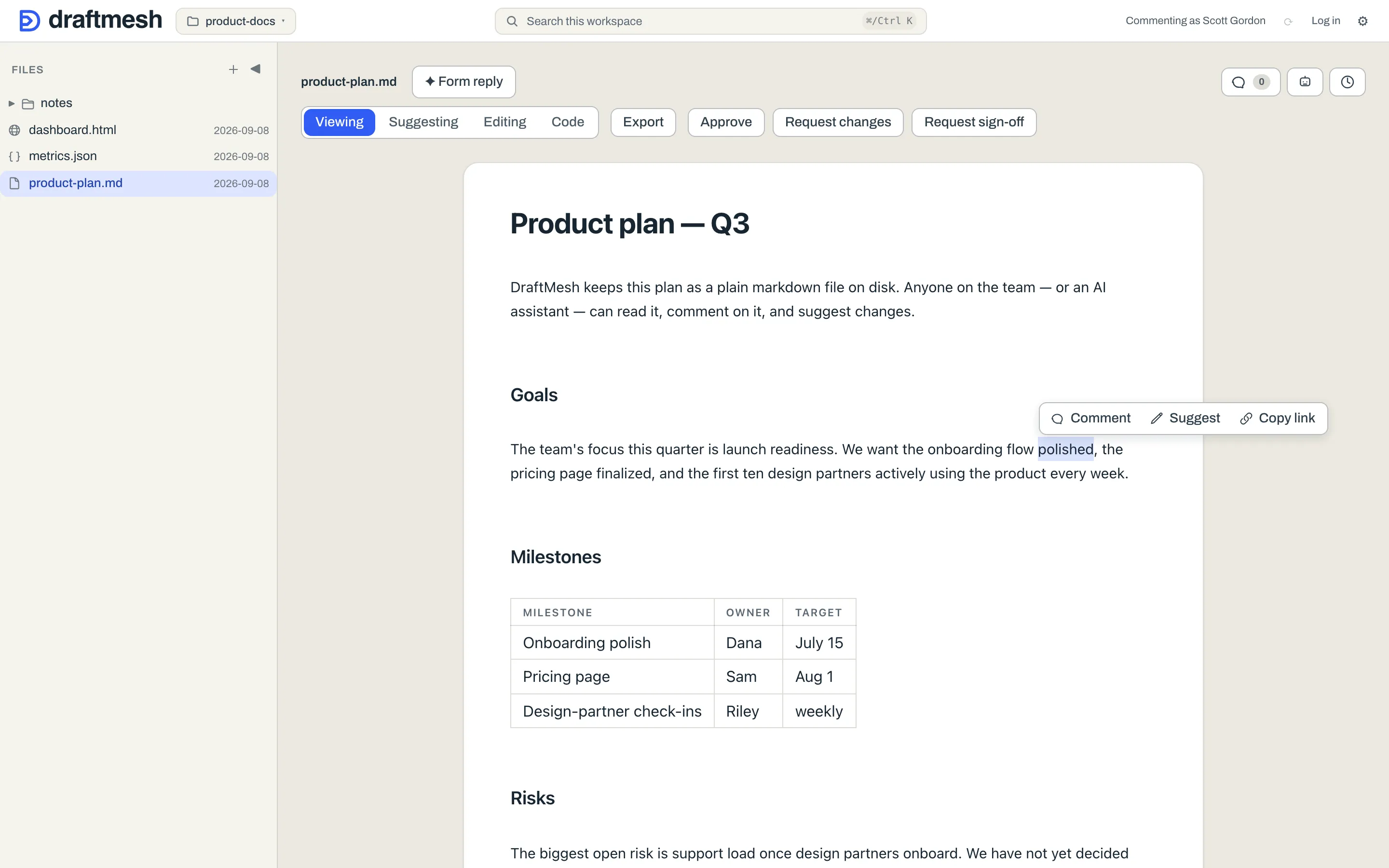
- Comment — attach a comment to exactly the text you selected.
- Suggest — propose replacement text for the selection (see below).
- Copy link — copy a deep link that opens this document scrolled to this section.
- Share section… — on DraftMesh cloud, issue a guest link that exposes only this section. See Workspaces & sync.
Not every mode is offered on every document. Suggesting and Editing are absent on HTML and JSON files, which have no prose editor, and absent when the access you were granted doesn’t reach that far — a document shared with you at comment shows Viewing and Code only, rather than buttons that would fail.
Editing
A full rich-text editor: type directly, and formatting (headings, bold, lists, tables) is applied as you write. Editing shows a formatting toolbar above the document — Bold, Italic, a Heading level picker, Bullet list, Ordered list and Link. To leave a comment, switch to Viewing or Suggesting and select the text there. (Code mode has its own floating bar over the selection: Bold, Italic, Inline code, Link, and Comment on selection.)
There is no Save button — changes auto-save, and the status in the toolbar tells you when the document is Saving… or Saved. (⌘ S / Ctrl S saves on the spot if you’d rather not wait.) Every save becomes a version you can restore later. If a save can’t be applied because someone else changed the document first, the toolbar says Conflict; other failures show Save failed, and pending typing shows Unsaved changes — rather than showing you a reassuring “Saved” that isn’t true.
Suggesting
Propose changes without changing the document. Select text and choose Suggest, or switch to Suggesting mode and simply type — your edits are captured as tracked changes instead of being applied.
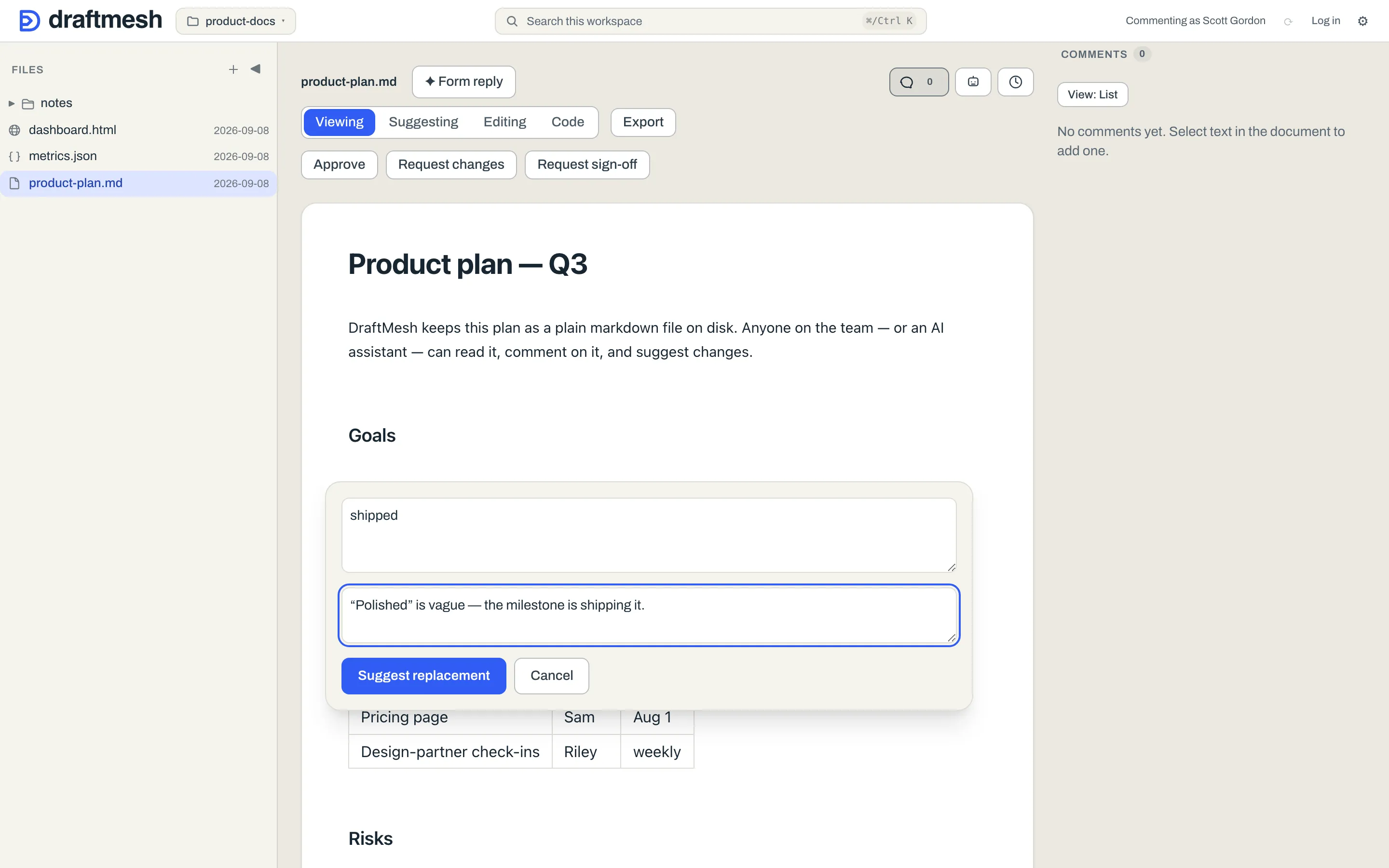
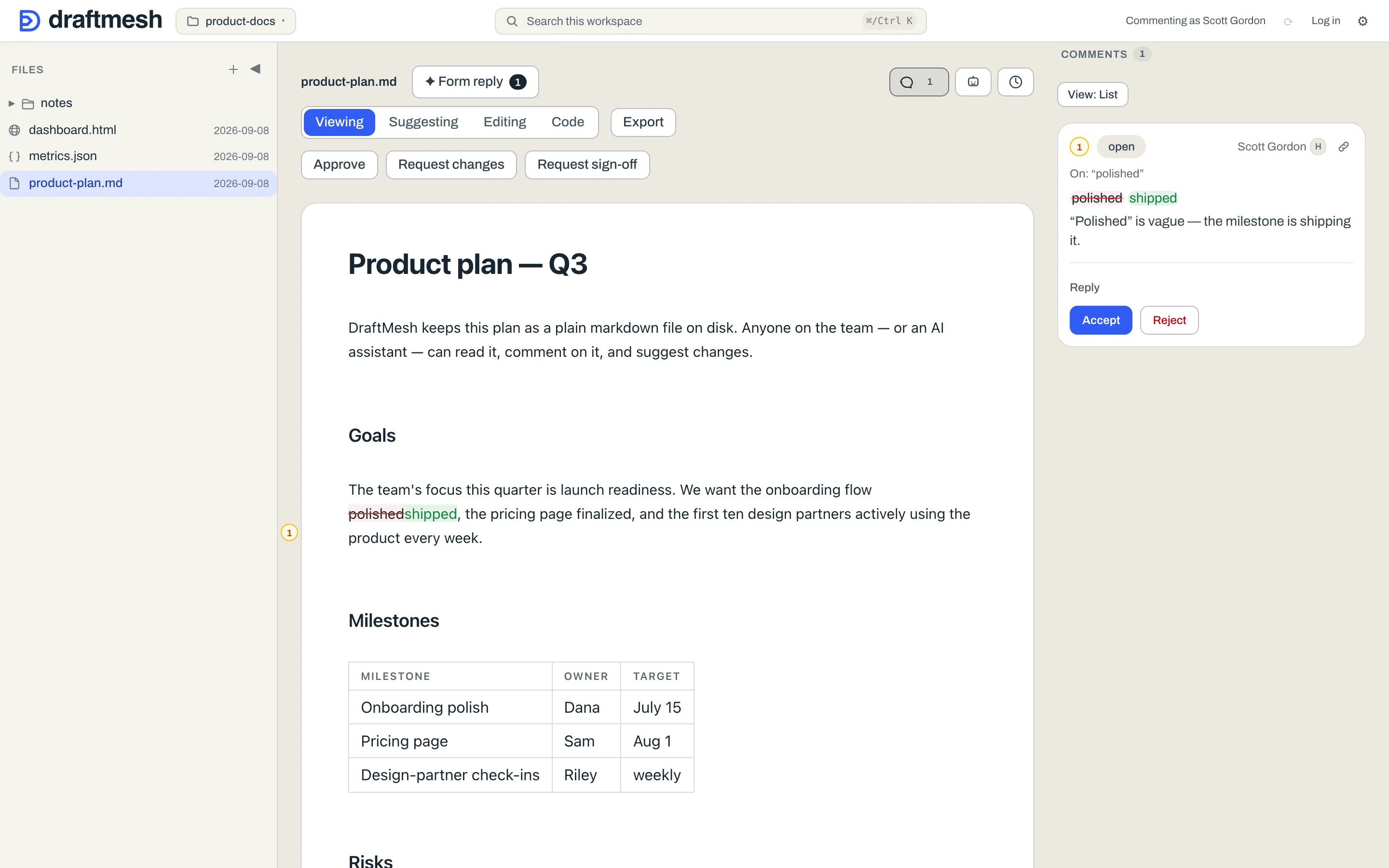
A suggestion shows up in the document as a strikethrough of the old text next to the proposed new text, and in the Comments panel with Accept and Reject buttons. The document’s actual content only changes when someone accepts the suggestion.
Code
The raw markdown, in a syntax-highlighted editor. Useful for precise formatting work — and for seeing exactly what is stored in your file, including the annotation markers described below. Code mode auto-saves just like Editing.
Where comments and suggestions live
Comments, suggestions, and approvals are stored inside the markdown file itself, as invisible HTML comments (<!-- @draftmesh{…} -->). You can see them in Code mode:
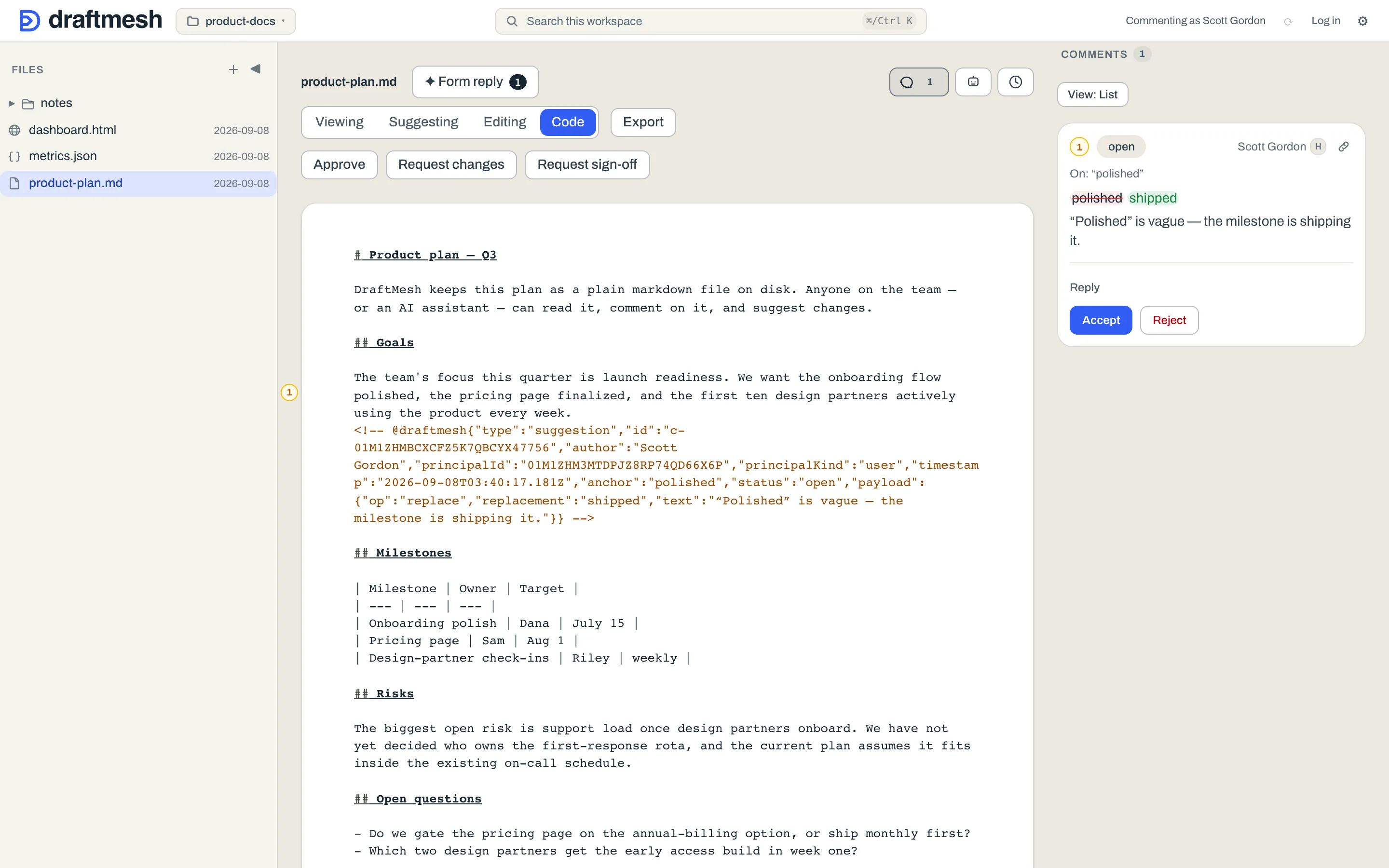
This is what keeps your documents portable: the file works in any editor, the annotations travel with the file, and if another tool edits the text, DraftMesh re-anchors the annotations to the surviving text — or marks them as orphaned rather than losing them.