Comments & review
Comment on any selection, review suggested edits, approve a specific version of a document, and request sign-off from a named person.
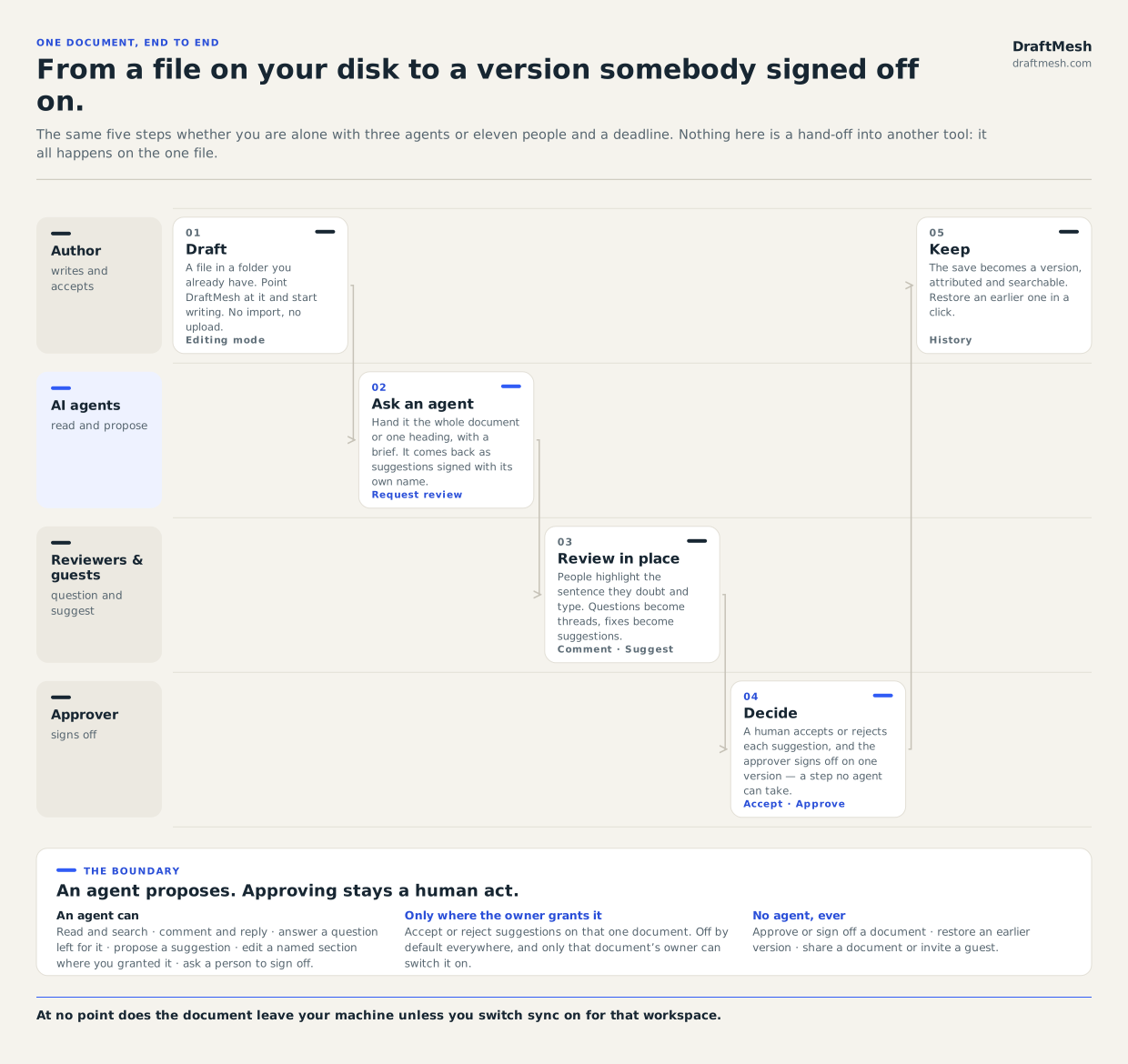
Everything below is one step of the same short journey — draft it, ask an agent if you want one, let people question it in place, decide, and keep what you decided.
Commenting
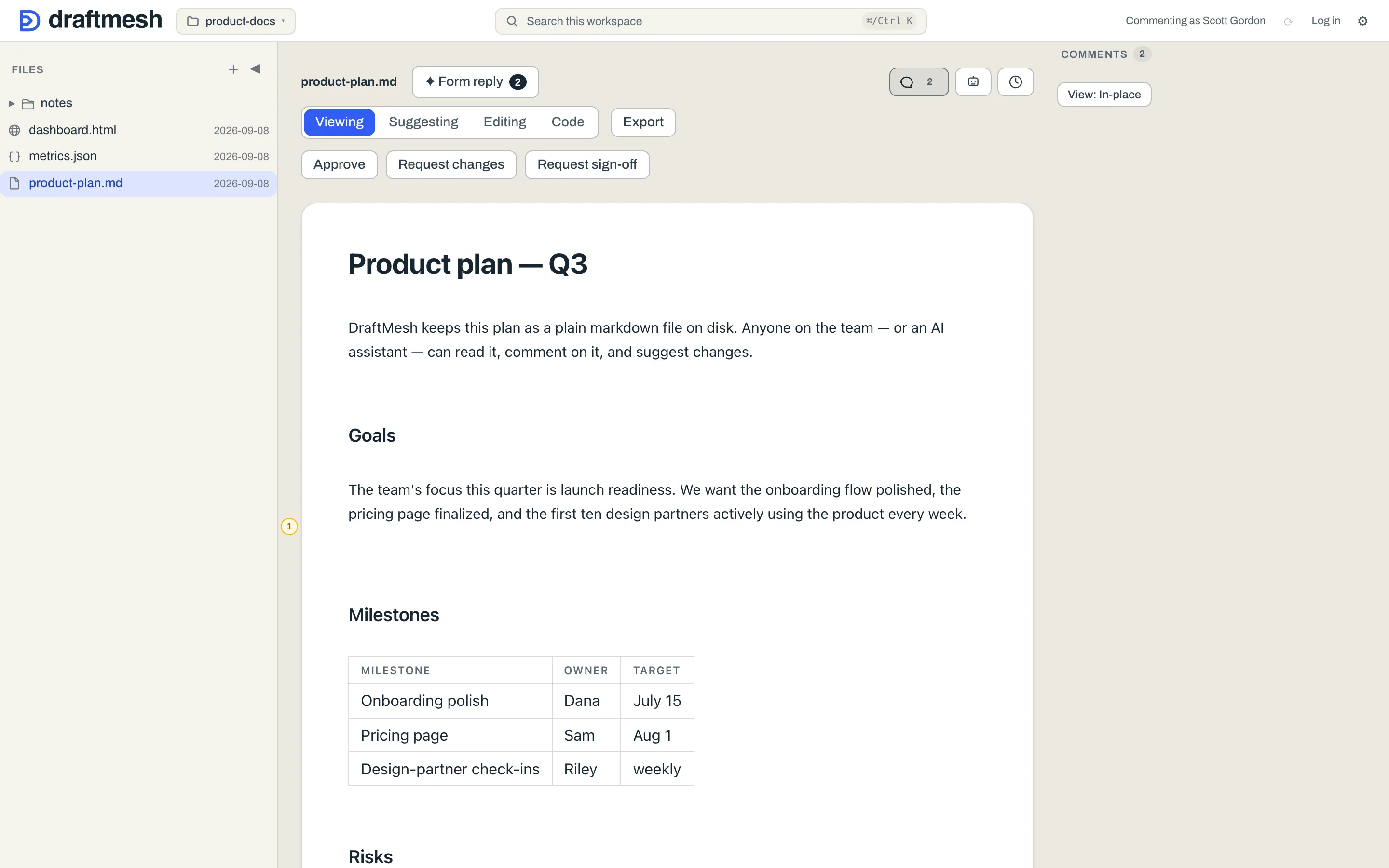
Select any text in Viewing mode and choose Comment. Comments anchor to exactly what you selected — a word, a paragraph, several blocks, or a table region — and the anchored text is highlighted in the document.
The Comments panel (the speech-bubble button in the toolbar) lists everything on the document. Each comment supports:
- Reply — threaded discussion under the comment.
- Resolve — mark it handled, after a confirming tap. Resolved comments leave the document text alone.
- Assign — hand the comment to a teammate or to a connected AI agent as a work item. The picker lists people and agents together, with agents badged as agents so you always know which you are handing work to. Unassign takes it back.
Naming someone in a comment
Type @ anywhere in a comment, a reply, or the note on a suggestion, and DraftMesh offers the people and agents already working in this workspace. Picking one drops their name into your text as ordinary prose — @Ada Chen — so the mention still reads correctly in any other editor, while DraftMesh also records it as a real reference. On a phone, that reference is what puts the comment in that person’s Inbox (see On your phone).
Mentioning someone does not grant them anything. On a hosted DraftMesh account, a person you mention who can already reach the document is emailed about it; a local daemon sends nothing, and nobody is emailed about a document they cannot open. If they can’t reach the document, share it with them.
Use the View toggle at the top of the panel to switch between List (all comments in a rail) and In-place (each comment beside the text it refers to — needs a wide enough window):
If the text a comment anchored to is later deleted or heavily rewritten, the comment isn’t lost — it moves to an Orphaned comments section so the discussion is preserved.
Reviewing suggestions
Suggestions appear in the same panel with Accept and Reject buttons; you can also click the tracked change where it sits in the prose and get ✓ Accept / ✕ Reject right there. Accepting takes a confirming click — “Accept and apply?” — then applies the proposed text; rejecting removes the proposal and leaves the document unchanged. Accepting is normally a human act: an AI assistant can propose an edit but not apply one — unless the document’s owner has deliberately granted a specific agent accept/reject permission on that document (see AI assistants (MCP)). Sign-off is always human, on every document.
If the text moved under a suggestion, the controls say so — “The original text has changed” — instead of applying a change to the wrong place. A suggestion whose stored change can’t be read is offered for rejection only.
Approving a document
The document toolbar carries Approve and Request changes — a lightweight sign-off for “this version is good”:

- The badge is a record, not just a name: who decided, when, any note they left, and — once the version history has loaded — exactly which version they decided on.
- View approved version opens that version read-only, so “what did we actually sign off on?” is one click away.
- If the document changes after an approval, the badge greys out and says content changed since — a stale approval can’t masquerade as a current one.
- Request changes records the opposite signal, visible to everyone on the document.
- Mixed decisions stay side by side. DraftMesh never reduces several people’s sign-offs to one overall verdict — with one exception, below: an approval from outside your organization needs an internal one beside it.
- Who may decide. Anyone with edit on the document — and anyone an open sign-off request is addressed to, whatever level they hold: being asked is itself the permission, for that document, until the request is answered or cancelled. Agents never decide.
- External decisions. A decision by someone outside your organization — a guest, or a person from another organization the document was shared with — is marked (external) on its badge. It never stands alone: the toolbar says Awaiting an internal sign-off until a member of the owning organization also approves. That is the only aggregate rule DraftMesh applies to sign-offs.
Asking someone to sign off
Request sign-off — the third button in the toolbar, after Approve and Request changes — turns “could you look at this?” into a tracked ask rather than a message in another app.
- Tick the people you want. The list is everyone active in this workspace, not only the people who have touched this document — minus you, and minus every agent. Approving is a human act, so an agent can ask for a sign-off but can never be asked for one. (The Assign picker on a comment is the other way round: it offers people and agents together, because doing the work is not deciding.) Anyone the list doesn’t hold can be typed into Someone else’s name.
- Add an optional note — what should they look at — and choose Send request.
- Each open request shows beside the sign-off controls — “Ada asked you to sign off”, with the version and note where there are any. A request addressed to you is highlighted.
- When you Approve or Request changes, the requests addressed to you close automatically — the badge beside them is the answer. An addressee can answer even on a document they hold at view or comment — the request is what lets them decide, and only that.
A request is about the whole document, so it lives in the toolbar rather than as a comment chip in the margin. On a phone, sign-off requests arrive in the Inbox — see On your phone.
Who has actually looked? — on a hosted workspace, an admin sees a Reviewers strip under the sign-off controls: one line per person the document was shared with, per guest link, and per sign-off addressee, in plain words — Raj · invited yesterday, not opened · Priya · opened today, no comment · Legal · approved v3 · content changed since · Elena — pricing review · approved (external). A collapsed strip counts external approvals apart and says awaiting an internal sign-off when they are the only ones. “Opened” is recorded when someone opens the document in DraftMesh (a guest, by the link they used); it is never a reason to grant or refuse anything, and only admins see it. A sign-off addressed to a typed name that matches nobody with access is called out on its own line rather than quietly listed as a person. Members and guests do not see the strip — the document’s approval badges and open requests are what everyone sees. A guest’s page does carry the sign-off state — v4 · approved v3 · edited since, or v4 · approved (external) v4 · awaiting an internal sign-off — but never the approver’s name or note.
Handing comments to an AI assistant
✦ Form reply (next to the document name, with a count of the comments and suggestions on the document) turns the document’s comments into a structured brief for an assistant.
- Scope picks My comments or All open comments.
- The prompt is shown in full and is editable before it goes anywhere. Editing it here changes only the brief — never your comments.
- Copy prompt puts it on the clipboard for any AI chat, which is the point of the feature: the assistant needs no connection to DraftMesh at all.
- Where DraftMesh can reach an agent for you, a Send to agent: row appears under the prompt and hands it over directly. Running DraftMesh on your own machine, that target is Claude Code on this machine; with registered agents you pick which one. The row reports back plainly — Sent to … or Send failed — try again.
If your assistant is connected properly, you may not need this at all: see AI assistants (MCP), where agents read comments, answer questions, and file suggestions themselves.